Session data is read from the OpenClaw agent session files stored under
~/.openclaw/agents/{agent}/sessions/.KPI strip
The five KPIs at the top of the page summarize the currently visible session set:
Error counts are shown in red when non-zero.
Filtering and sorting
Use the controls above the table to narrow down the session list:1
Search by session ID
Type any part of a session UUID into the search box. This filter bypasses all other filters and matches across all loaded sessions.
2
Filter by agent
Select an agent from the dropdown to show only sessions for that agent.
3
Filter by time range
Choose Today, Last 7 days, Last 30 days, or All time. When a time filter is active, token counts and costs are recalculated to include only messages within that window.
4
Filter by session type
Choose All sessions, Cron only, or Non-cron to isolate scheduled vs. interactive sessions.
5
Sort
Sort by Newest (last activity), Tokens, Cost, Errors, or Cache hit (ascending).
Sessions table
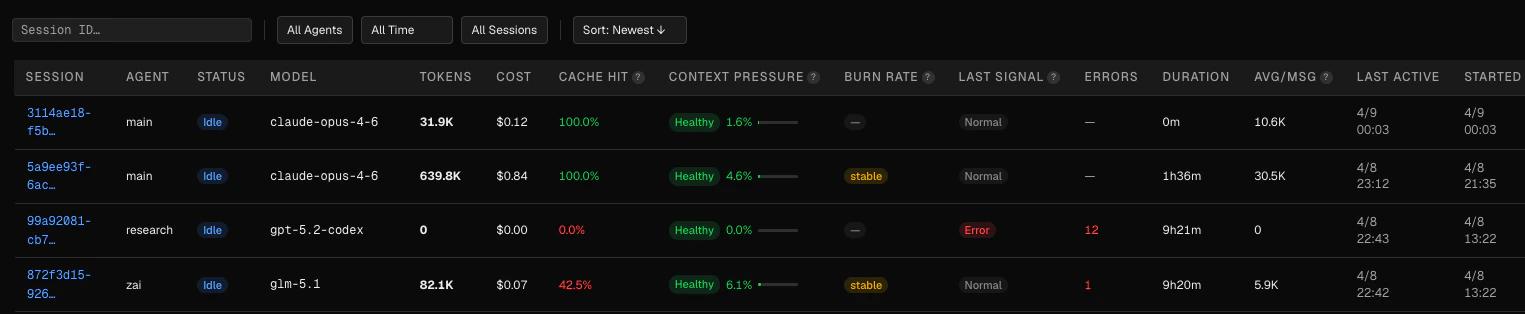
Last signal values
Cron vs manual sessions

- The Cron only filter in the filter bar
- The Cron field in the detail panel, which shows the cron task name when applicable
Session detail panel
Click any row to expand an inline detail panel for that session. The panel has two tabs.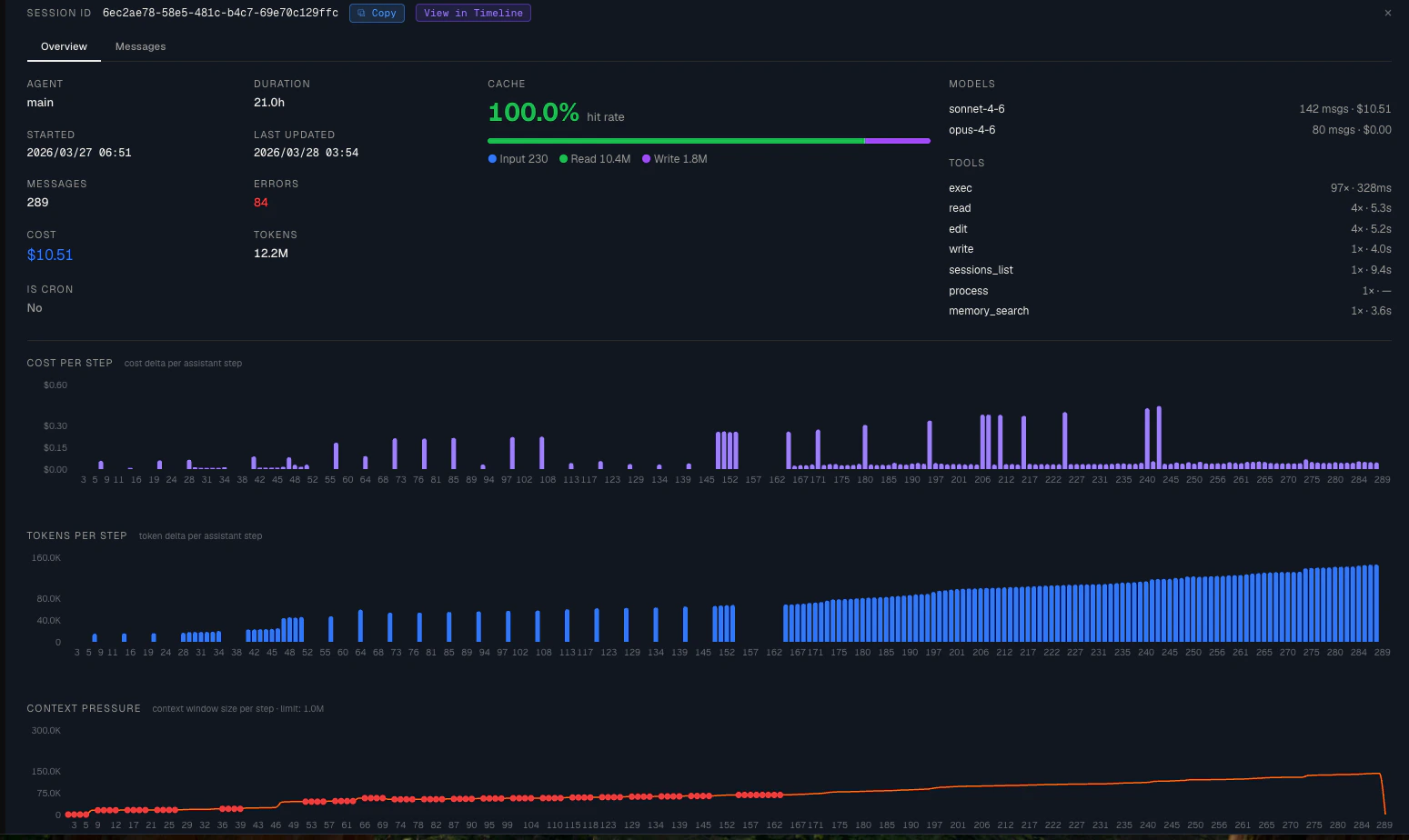
Overview tab
The Overview tab is divided into three columns: Column 1 — Session stats- Agent name, duration, start time, last updated
- Message count, error count, total cost, total tokens
- Whether the session is a cron session (and which cron task, if applicable)
- Cache hit rate as a large percentage (green ≥ 80 %, amber ≥ 50 %, red below 50 %)
- Exact token counts for each type
- Per-model message count and cost
- Per-tool call count and average duration
Cost per step
A bar chart of cost per assistant message, ordered by sequence number. Useful for spotting expensive individual turns.
Tokens per step
A bar chart of total tokens per assistant message. Rising bars indicate the context window is filling up.
Context pressure
A line chart of context window usage over time, with reference lines at 70 % (amber) and 100 % (red). Error steps are marked with red dots.
Messages tab

- Sequence number, model, role
- Input, output, cache read, cache write, and total tokens
- Cost per message
- Error flag and error message
- Latency (time since previous message)
Navigating to the Session Timeline
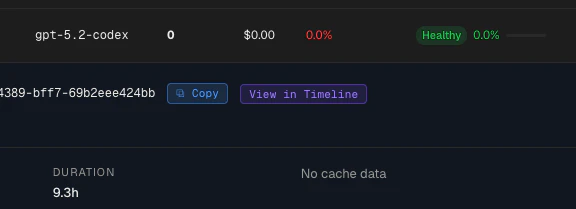
From the detail panel header, click View in Timeline to open the Session Timeline for a full message-by-message visual breakdown of that session.