KPI strip
The five KPIs at the top summarize the current agent fleet:Agent cards
Agents are sorted by most recently active, with agents whose directories no longer exist moved to the end. Cards are displayed in a responsive grid.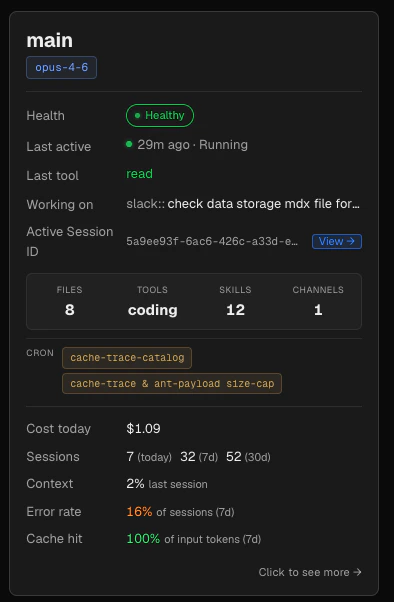
Card header
The card header shows:- Agent name in large bold text
- Primary model pill showing the shortened model name (e.g.
sonnet-4-5rather thanclaude-sonnet-4-5-latest). If the agent has never run a session, the pill shows “No sessions yet.” - A Removed badge if the agent directory no longer exists on disk
Detail rows
Each card has a set of labeled rows:Health
Health
The health verdict badge:
healthy (green), warning (amber), or error (red). Below the badge, any active health reasons are listed — for example, “3 tool failures in last 10 messages” or “context at 87 % — approaching limit”.Health is calculated from the last 10 messages of the most recent non-cron session. Errors older than 6 hours are automatically cleared.Last active
Last active
How long ago the agent had activity, and its current operational status:
running, stuck, idle, or stale. The status dot pulses green when the agent is actively running.Last tool
Last tool
The most recently called tool name, shown only when the agent is running or stuck. Colored green for running agents, amber for stuck ones.
Working on
Working on
The most recent user message from the agent’s latest session file, stripped of cron prefixes and Slack routing headers. For messages sent via Slack, a
slack:: prefix appears before the task text. Shows — when there is no current task.Active session ID
Active session ID
When the agent has a current task, the session ID is shown in small monospace text with a View → button that navigates to that session in the Sessions browser.
Config grid
A four-column mini-stat grid at the bottom of the card shows:
Below the grid, the agent’s cron task names are shown as pills (if any are configured).
Footer stats
For agents that have at least one recorded session, the card footer shows:- Cost today
- Sessions
- Context
- Error rate
- Cache hit rate
Today’s cost for this agent, calculated from messages with timestamps since midnight. Shows
— if there has been no activity today.Health status logic
Health is computed server-side on every data fetch. It reflects only the current state of the agent’s most recent non-cron session — not historical errors.
Context pressure from the last session can also elevate health:
- Context ≥ 80 %: upgrades from
healthytowarningwith reason “context at X% — approaching limit” - Context ≥ 100 %: upgrades to
errorwith reason “context at X% — likely hit limit”
healthy regardless of past errors.
Agent detail panel
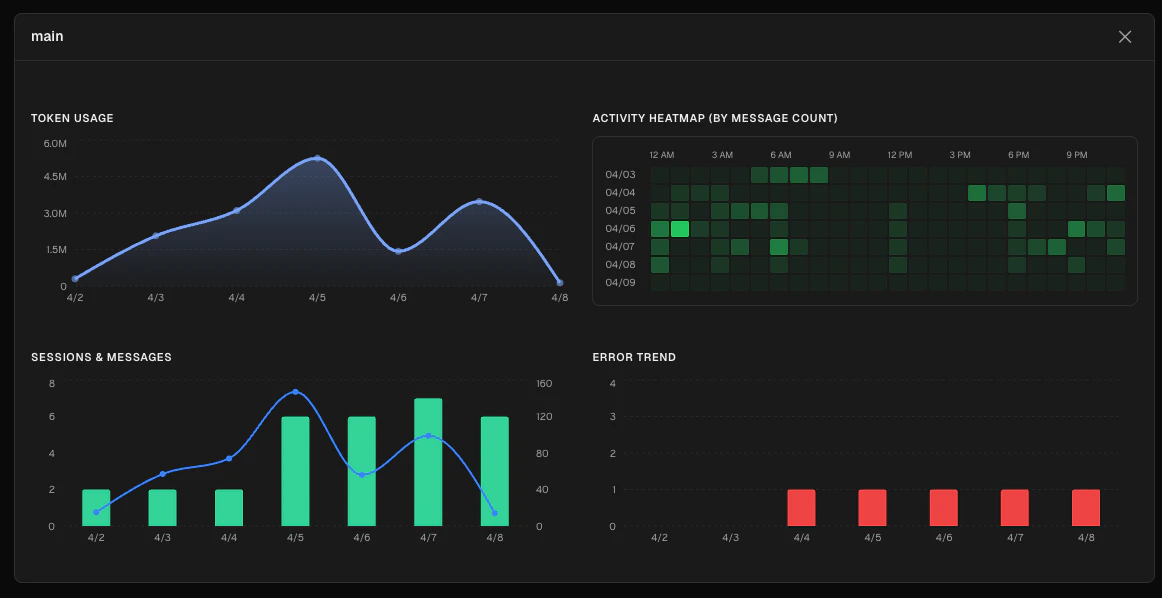
Click the Click to see more button at the bottom of any card to expand a full-width detail panel below it. Click the button again (now labeled Close ↑) or the✕ in the panel header to collapse it.
Token usage
An area chart of total tokens per day. Hover to see exact token and cost values.
Activity heatmap
A 7-day × 24-hour heatmap of tool call counts. Each cell is colored by activity intensity — deeper green means more tool calls in that hour. Useful for understanding when the agent is most active and spotting unusual activity patterns.
Sessions and messages
A combined chart with bars for daily session count (green, left axis) and a line for message count (blue, right axis).
Error trend
A bar chart of sessions with errors per day. Use this alongside the Sessions chart to track whether error rates are improving or worsening.