This page requires cache trace data to be enabled. If cache trace is not active, the page displays an “Unavailable” banner with instructions on how to enable it.
Enabling cache trace
The cache trace status is shown as a colored dot at the top of the page: green when enabled, gray when not. Two ways to enable it: Option 1 — add to~/.openclaw/openclaw.json:
OPENCLAW_CACHE_TRACE to OpenClaw and let it enable the setting for you.
Selecting a session
Use the session picker to choose which session to inspect. The dropdown shows the session ID, agent name, model, cost, and timestamp for each session. Type to search by any of these fields. Click × to clear the selection.Run cards
Each LLM API call in the session is displayed as a collapsible run card. By default, the page shows the first 30 runs — click “Show all runs” to load every run in the session.Run card header
The collapsed card header shows a summary of the API call at a glance:
Pipeline flow
Below the header summary, each run card shows a pipeline flow visualization — a horizontal sequence of stages showing how the context was assembled for this API call:
The pipeline flow is the key to understanding where context is being lost. If you see a large negative delta at the Limited stage, the conversation has outgrown the model’s context window and messages are being silently dropped.
Expanded run detail
Click any run card to expand it and see the full detail. The expanded view contains multiple collapsible sections:Run ID and system digest
At the top of the expanded view:
- Run ID — unique identifier for this API call
- System digest — SHA256 hash of the system prompt. If this hash changes between consecutive runs, the prompt cache is invalidated and you pay full input token cost. A stable digest means caching is working.
Pipeline detail table
A detailed table listing every pipeline stage with columns: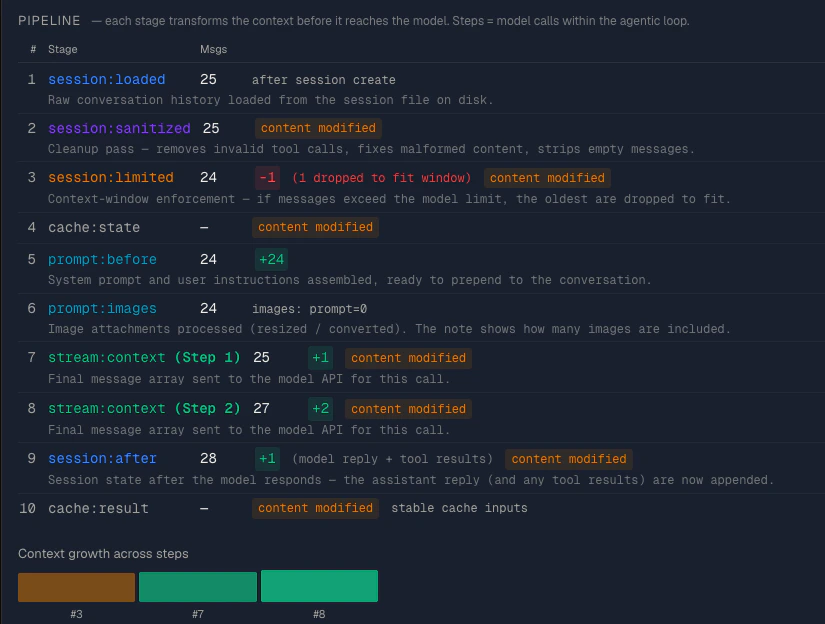
Annotations appear next to deltas to explain what happened:
- “N invalid msgs removed” — shown at the sanitized stage when malformed messages were cleaned up
- “N dropped to fit context” — shown in red at the limited stage when messages were dropped
- “model reply + tool results” — shown at the after stage when new messages were added
- “content modified” — shown in amber when the content hash changed at a stage, indicating the messages were altered (not just added/removed)
Turn usage
A grid showing the token breakdown for this API call:
- Total tokens, input tokens, output tokens
- Cache read tokens (blue), cache write tokens (purple)
- Cost
- Number of model calls
Model config
Collapsed by default. Shows the model configuration used for this call: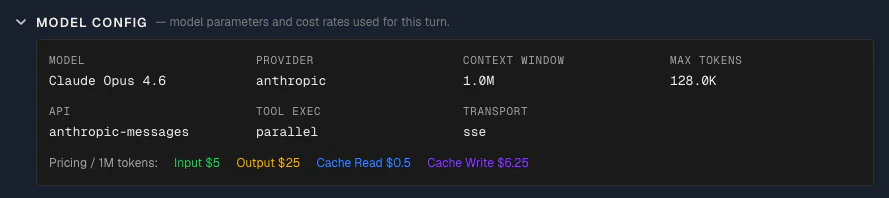
- Model: The model name as sent to the API
- Provider: The LLM provider handling the request
- Context window size: The maximum number of tokens this model can accept as input
- Max tokens: The maximum number of tokens the model is allowed to generate in its response
- API: The API protocol used to communicate with the provider (e.g.
messages,chat-completions) — this determines how the prompt is formatted and sent - Reasoning mode: The reasoning mode, if enabled (e.g.
enabled,disabled) — controls whether the model uses extended thinking - Tool execution mode: How tool calls are handled (e.g.
client-side,server-side) - Transport: The connection method used to send the request (e.g.
sse,rest)
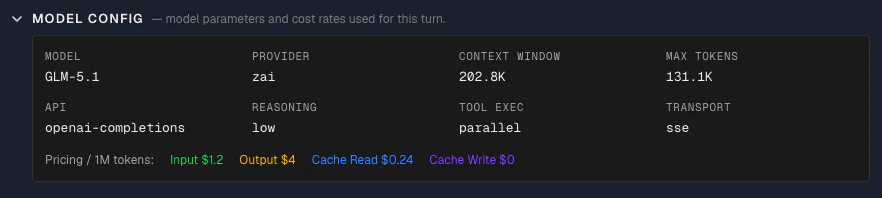
Note: The final line (Model Pricing) corresponds to GLM model and differs from the Opus configuration pricing shown above
options.model.cost field recorded in the cache trace at the time of each API call. Claw Lens displays them as-is; it does not maintain its own pricing table. This lets you verify exactly what rate was applied when calculating costs for this session.
Note: OpenClaw’s pricing is also an estimate. For exact rates, refer to the model provider’s official pricing page — e.g. Anthropic API pricing or OpenAI API price. Use this to roughly compare pricing across models — you don’t always need the most expensive model. Choose based on your task requirements, model capabilities, and budget.
Role distribution
A colored bar showing the proportion of messages by role:
- User (blue) — user messages
- Assistant (green) — model responses
- Tool result (amber) — tool call results
- Other (gray) — any other message types
User prompt
The user prompt for this API call, shown as plain text with a copy button. The subtitle shows the estimated token count.System prompt
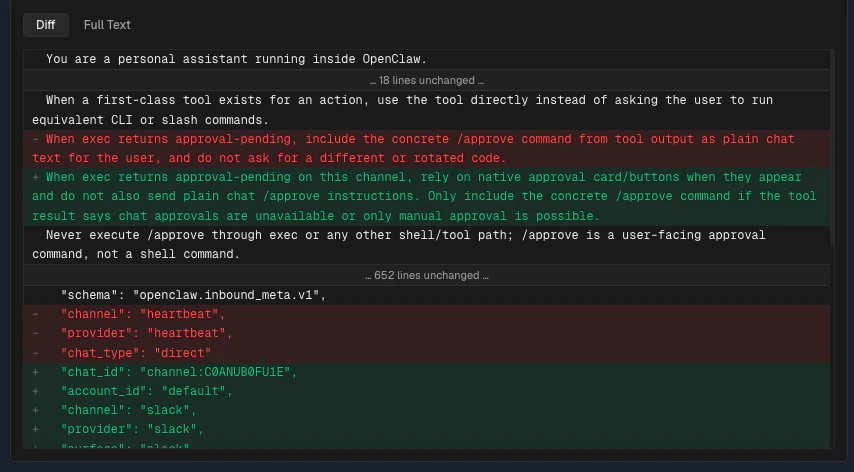
The full system prompt with three key features: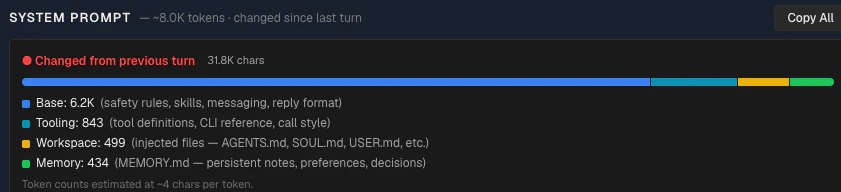
- Base — safety rules, skills, messaging format, reply format
- Tooling — tool definitions, CLI reference, call style
- Workspace — injected files (AGENTS.md, SOUL.md, USER.md, etc.)
- Memory — MEMORY.md content (persistent notes, preferences, decisions)
Context tail
Collapsed by default. Shows the last N messages in the context sent to the model. Each message displays: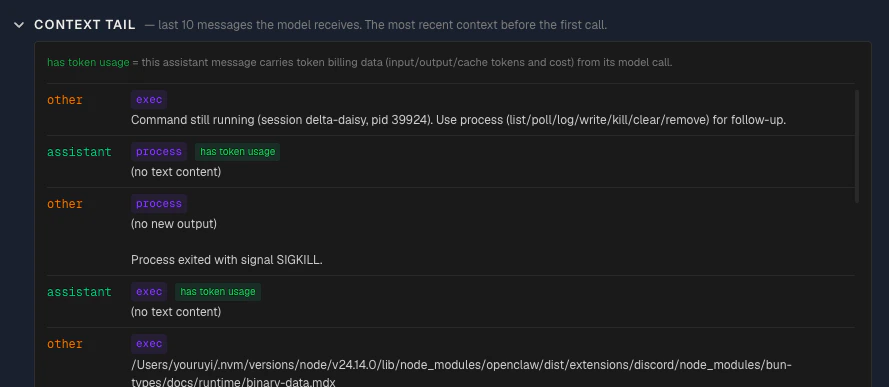
- Role — color-coded (user in blue, assistant in green, tool_result in amber)
- Tool name — shown as a purple badge when the message is a tool result
- Token usage indicator — a green badge when the message has token usage data attached. Messages with a green “token usage” badge are LLM responses that carry actual token counts (input, output, cache read, cache write). Messages without the badge — such as user messages and tool results — are context inputs that don’t generate their own token billing.
- Text preview — truncated content of the message