KPI strip
At the top of the page, a strip of six metrics summarizes the selected session:Selecting a session
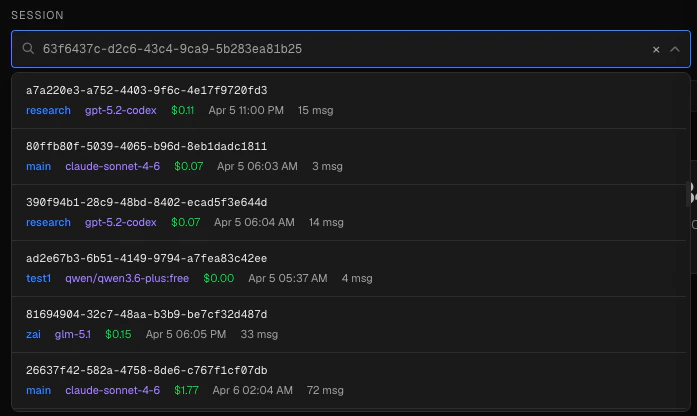
- Type any part of a session ID or agent name to filter the list.
- The dropdown shows the full session ID, agent name, primary model, total cost, and end time for each session.
- You can paste a complete UUID directly into the input — the picker will auto-select the matching session.
- Click × to clear the current selection and return to the empty state.
?session=<id>), so you can bookmark or share a direct link to any session.
The Gantt chart
The chart uses compressed time on its horizontal axis. The axis is divided into 8 evenly spaced tick marks that span the session’s active duration.Compressed vs wall-clock time

Wall-clock timestamps are preserved in the expanded turn detail view (shown as ”+ elapsed” from session start). The compression only affects chart positioning.
Turns (rows)
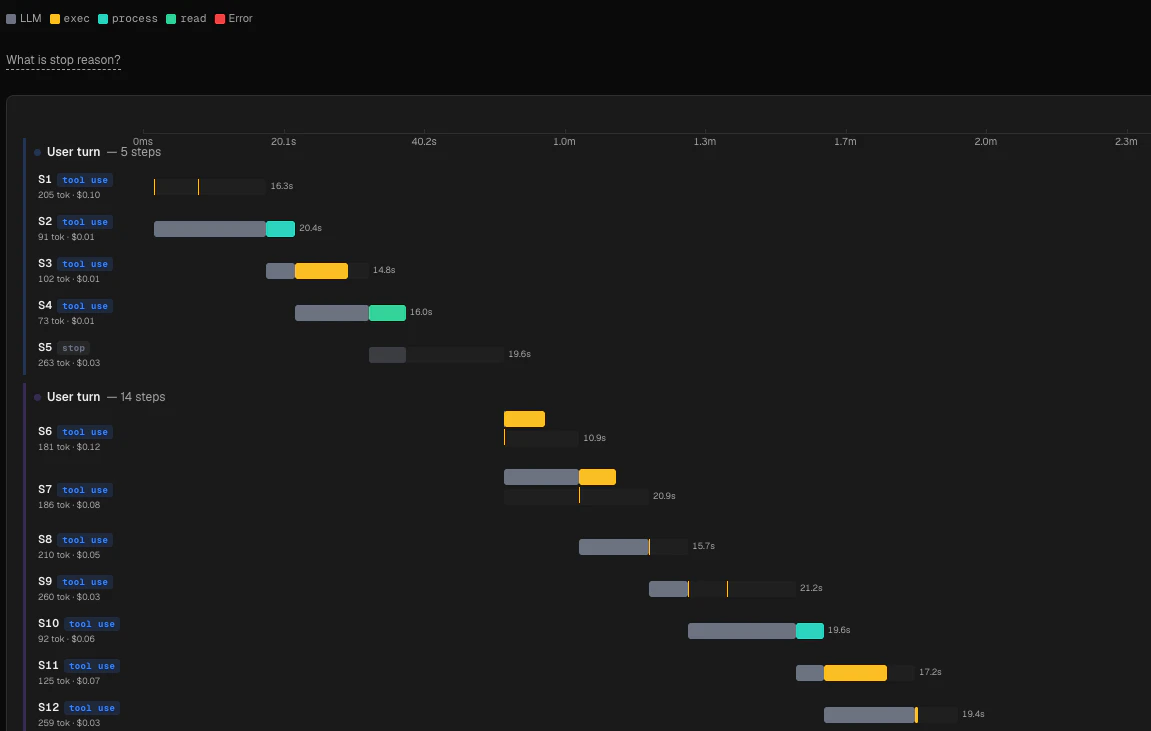
S1, S2, and so on. The row label also shows:
- Total tokens for that turn and its cost
- A stop reason pill — see below for what each value means
- A dark gray segment at the left edge represents LLM inference time.
- Colored segments represent individual tool calls, positioned at their actual compressed start time.
Stop reasons
Each turn ends with one of five stop reasons, shown as a colored pill next to the sequence number:Parallel tool calls
When your agent issues multiple tool calls in a single turn, Claw Lens detects this and stacks them in separate horizontal lanes within the same turn row. Each lane represents one parallel execution track. The row height grows automatically to fit all lanes.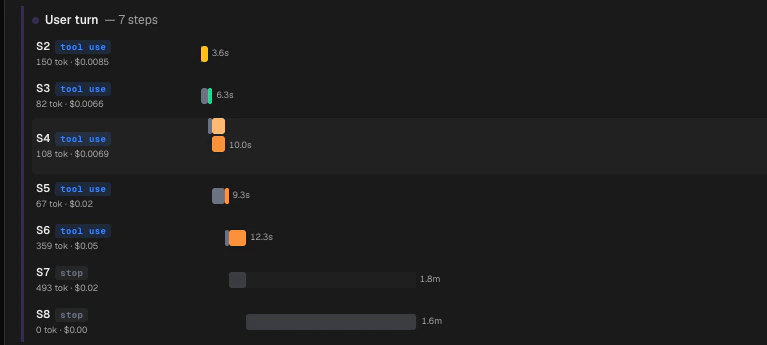
Color legend
The legend above the chart shows a swatch for each tool that appeared in the session. The following built-in tools have fixed colors:exec/Bash— amberread/Read— greenwrite/Write— purpleedit/Edit— cyanweb_fetch/WebFetch— orangeweb_search/WebSearch— peachsessions_spawn/Agent— pink
Turn detail
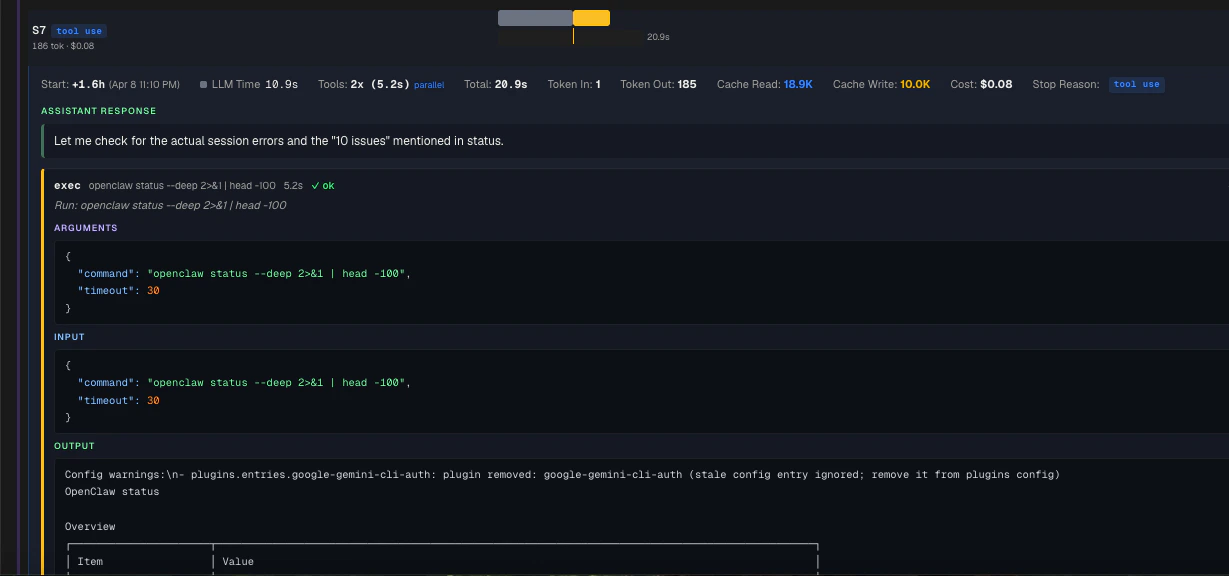
- Wall-clock start time (offset from session start, with an absolute timestamp)
- LLM inference time
- Number of tool calls and their parallel-aware wall-clock span
- Total turn duration
- Whether parallel execution was detected
- Input tokens
- Output tokens
- Cache read tokens (shown in blue when present)
- Cache write tokens (shown in amber when present)
- Turn cost
error.
Message context — the text of the user message that triggered this turn, and the assistant’s text response. These are fetched live from the session log.
Tool call cards
Each tool call in the turn renders as its own card with a colored left border. The card shows:- Tool name and target path or URL (when available)
- Duration and success/failure status
- A natural-language summary for common tools (
exec,read,write,edit,web_search,web_fetch) - Arguments — the parsed JSON input the model passed to the tool
- Raw input and raw output — the exact bytes sent and received, pretty-printed if valid JSON
Navigating from other pages
Several other Claw Lens pages link directly into the Session Timeline with a specific turn pre-selected:- The Tool Profiler links slow calls to the turn in which they occurred.
- The Deep Turn page links deep turns directly to the timeline with the turn highlighted.